03/10/2012

CRM 2011 Importing multiple files into CRM - Contacts and thier photos

In CRM 2011 you can import multiple files together. The following tutorial shows how to import a Contact and the photo as an attachment in the notes section:

Obtain Templates for Data Import

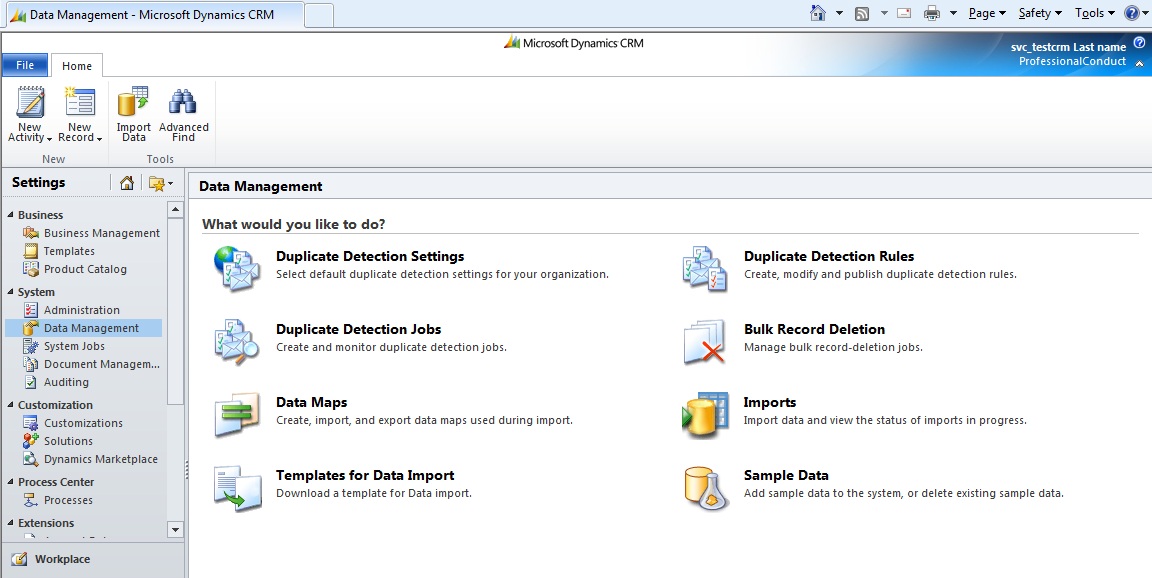
First we need to extract the data import templates for contact and note. Navigate to settings -> Data Management:


Click on “Templates for Data Import"


Here we can export the desired templates to fill out the data. Create a folder in your hard drive and call it “Import”. Select the “Contact” entity and click on Download and save the template in the folder you have just created.

Repeat the previous steps and download data import templates for “Note” entity and save it in the same folder where you have saved your “Contact” data import template.

Prepare the data for import

 Open the folder where you have saved both data import templates and create a folder called “Attachments” we will use this folder to store the photo of the contact:


Open the “Contact” data import template and fill out the contact information. Note that the columns in bold are mandatoryfileds on contact form:


Save the photo of the contact in the “attachments” folder.

The last thing is to fill out “Note” data import template. Open the template, fill the regarding section as full name of the contact and the file name just same as the file name of the contact in the “attachments” folder


Add another column to the template, call it “Document” and copy the filename


Here we have linked our contact to the note and to the photo which we have stored in “Attachments” folder.

Create a zip file for importing the data

Select all the files inside the folder (including subfolders) and create a zip file and call it Contact.zip


Importing to CRM


Open CRM and navigate to workplace > Imports


Click on the data import in the ribbon


Select the Zip file you have created earlier


Choose the default mapping and try to sort out any possible mapping issues
Click on next.


After a while (check the Imports section of your CRM to ensure the import was successful) you should see your contact!


20/09/2012

The meaning of xRM in MS Dynamics CRM 2011

The Term “xRM” stands for “Anything Relationship Management” and is used to refer to custom solutions that build on top of the Microsoft Dynamics platform. So Microsoft Dynamics CRM is not just managing the “customers”; it can be customized to manage “anything” that fits for the business requirement

From the book "Microsoft Dynamics CRM 2011 New Features" 

03/09/2012

CRM key Error: Current key (KeyType : CrmWRPCTokenKey) is expired. This can indicate that a key is not being regenerated correctly.

Accessing to any of the available orgs on CRM 2011, was throwing an error message.

CRM architecture:


The error message trying to browse CRM 2011 from client:


The error message on browsing locally (from inside one of the CRM servers)

Log file warning:
Exception information:
    Exception type: CrmException
    Exception message: The key specified to compute a hash value is expired, only active keys are valid.  Expired Key : CrmKey(Id: -- guid here --, ScaleGroupId:00000000-0000-0000-0000-000000000000, KeyType:CrmWRPCTokenKey, Expired:True, ValidOn:07/30/2012 00:48:28, ExpiresOn:09/01/2012 00:48:28, CreatedOn:07/30/2012 00:48:28,
CreatedBy:--crm user here --   at Microsoft.Crm.CrmKeyService.ComputeHash(CrmKey key, Guid scaleGroupId, HashParameterBase[] parameters)
   at Microsoft.Crm.Application.Security.WrpcContext..ctor()
   at Microsoft.Crm.Application.Controls.AppPage.ValidateWrpcContext()
   at Microsoft.Crm.Application.Controls.AppPage.OnInit(EventArgs e)
   at System.Web.UI.Control.InitRecursive(Control namingContainer)
   at System.Web.UI.Page.ProcessRequestMain(Boolean includeStagesBeforeAsyncPoint, Boolean includeStagesAfterAsyncPoint)

Or log error

Current key (KeyType : CrmWRPCTokenKey) is expired.  This can indicate that a key is not being regenerated correctly.  Current Key : CrmKey(Id: -- guid here --, ScaleGroupId:00000000-0000-0000-0000-000000000000, KeyType:CrmWRPCTokenKey, Expired:True, ValidOn:07/30/2012 00:48:28, ExpiresOn:09/01/2012 00:48:28, CreatedOn:07/30/2012 00:48:28, CreatedBy:--crm user here --.

How to solve:

1-Make sure "Microsoft CRM Asynchronous Processing Service" is running.(start>run type services.msc)
2-Execute Microsoft.Crm.Tools.WRPCKeyRenewal.exe with parameter /R ( Microsoft.Crm.Tools.WRPCKeyRenewal.exe /R ) from
:\ \Microsoft Dynamics CRM\Tools ( for example - C:\Program Files\Microsoft Dynamics CRM\Tools )

Why this happend? No Idea!


Update: On December 2011 a ticket has been lodged with Microsoft regarding this problem. Microsoft advised the token key is being generated by Async (Maintenance) service. The service has been stopped on both CRM servers. Starting Async (Maintenance) service fixed the issue permanently.

24/08/2012

CRM 2011 Where the heck report's date format are comming from

Problem: You have your SSRS RDL reports deployed as an "Existing report" inside your CRM and you realise the date format on the report parameters is MM/dd/yyyy which is quite different from what you except yyyy/MM/dd


Imagine you have the following CRM server architecture, in case you run an existing deployed SSRS  report from inside CRM where the date format is coming from?


Specially the format of date parameters inside your report:

Well we all thought it might either come from report server date format or sql server regional settings.


Answer: The report's date format reflect the regional setting on your CRM server itself! :)
Change the regional settings on both or your CRM servers, reset IIS on both of them and close your client and re-open a new CRM sessions and the report's parameters date format will be set to your desired regional setting on your CRM servers.


21/03/2012

The type or namespace name 'Xrm' does not exist in the namespace 'Microsoft' (are you missing an assembly reference?)

The other I was writing a console app and i have referenced all the required CRM dlls from SDK and my code was very simple:

using System;
using System.Configuration;
using System.Linq;
using System.Net;
using System.ServiceModel.Description;
using CrmDynamics;
using Microsoft.Xrm.Sdk.Client;

namespace ConsoleApplication12
{
    class Program
    {
        private static readonly string TargetCrmService = ConfigurationManager.AppSettings["TargetCrmService"];
        private static readonly string UserName = ConfigurationManager.AppSettings["UserName"];
        private static readonly string Domain = ConfigurationManager.AppSettings["Domain"];
        private static readonly string Password = ConfigurationManager.AppSettings["Password"];
        public static ClientCredentials ClientCredentials
        {
            get
            {
                var credentials = new ClientCredentials();
                credentials.Windows.ClientCredential = new NetworkCredential(UserName, Password, Domain);
                return credentials;
            }
        }
        static void Main(string[] args)
        {
            var serviceProxy = new OrganizationServiceProxy(new Uri(TargetCrmService), null, ClientCredentials, null);
            serviceProxy.EnableProxyTypes();
            var context = new CrmServiceContext(serviceProxy);
            var workflows = context.AsyncOperationSet.Where(x => x.Name.Contains("Hooman"));

            foreach (var workflow in workflows)
            {
                Console.WriteLine(workflow.Name);
            }
            Console.ReadLine();
        }
    }
}

By running the above code and making sure that I have referenced all required DLL files still i had this error:
The type or namespace name 'Xrm' does not exist in the namespace 'Microsoft' (are you missing an assembly reference?)

How To Solve It?


Simply change your project to run in .NET Framework 4.0!
Right click on your project and click on properties and change your target framework to >NET Framework 4


05/03/2012

CRM Coding - Show the names of the users in a specific security role

This is going to be a long article. I wanted to write an end to end artcile which can show how to code against CRM early bound organization service proxy.

In this article, we want to write a console app which will write the "Full Name" of the users in a specific security role in CRM 2011.

1. Generate your Organization service proxy

From the downloaded SDK, find crmsvcutil.exe, open a command window, chage your directry to the same folder where crmsvcutil.exe is located and type the following:

crmsvcutil.exe /url:"crmpath/orgname/XrmServices/2011/Organization.svc"/out:"OrganizationService.cs" /username:"crmuser" /password:"crmPass" /domain:"crmDomain" /namespace:"DynamicsCrm" /ServiceContextName:CrmServiceContext 

2. Create a new console app (C#)
Add references and add the using statement on top to point to:

using System;
using System.Collections.Generic;
using System.Configuration;
using System.Linq;
using System.Net;
using DynamicsCrm;
using Microsoft.Xrm.Sdk;
using Microsoft.Xrm.Sdk.Client;
using System.ServiceModel.Description;
using Microsoft.Xrm.Sdk.Query;
add the OrganizationService.CS that you have generated earlier to your app console.

3. Edit app.config
In your app.config file of your console app add the following keys and values
< configuration>
  < appsettings>
    < add key="TargetCrmService" value="http://crm/org/XrmServices/2011/Organization.svc">
    < add key="UserName" value="yourUserName">
    < add key="Password" value="CrmPass">
    < add key="Domain" value="yourDomain">
  < / appsettings="">
< startup>< supportedruntime sku=".NETFramework,Version=v4.0" version="v4.0" >< / startup>
< /configuration="">
Note1: please remove additional spaces above
Note2: Make sure your console app project runs under .NET framework 4.0

4. Coding
Here is the code in the console app to retirve the Full Name of the users within a specific "Security role" (System administrators in this example).
namespace CRMPlayGround
{
    internal class Program
    {
        private static readonly string TargetCrmService = ConfigurationManager.AppSettings["TargetCrmService"];
        private static readonly string UserName = ConfigurationManager.AppSettings["UserName"];
        private static readonly string Domain = ConfigurationManager.AppSettings["Domain"];
        private static readonly string Password = ConfigurationManager.AppSettings["Password"];

        public static ClientCredentials ClientCredentials
        {
            get
            {
                var credentials = new ClientCredentials();
                credentials.Windows.ClientCredential = new NetworkCredential(UserName, Password, Domain);
                return credentials;
            }
        }

        private static void Main(string[] args)
        {
            Console.WriteLine("*********************************************************************");
            Console.WriteLine("*                                                                   *");
            Console.WriteLine("*               CRM play Ground                                     *");
            Console.WriteLine("*                                                                   *");
            Console.WriteLine("*********************************************************************");

            Console.WriteLine();
            Console.WriteLine("Connecting to CRM...");

            var serviceProxy = new OrganizationServiceProxy(new Uri(TargetCrmService), null, ClientCredentials, null);
            serviceProxy.EnableProxyTypes();

            var crmServiceContext = new CrmServiceContext(serviceProxy);
            Console.WriteLine("Finding the first user in CRM who is Admin and has a manager...");

            var userList = FindUsersWithSecurtyRole(crmServiceContext,"System Administrator");
            foreach (var username in userList)
            {
                Console.WriteLine(username);
            }

            Console.WriteLine();

            Console.WriteLine("Done! press any key to close ...");
            Console.ReadKey();
        }


        /// 
        /// Find Users who have a specific security role.
        /// 
        /// 
        /// Each SystemUser in CRM has N:N relationship with UserRoles
        /// 
        /// The CRM service context./// Security role name/// List of user's fullname as string
        private static IEnumerable FindUsersWithSecurtyRole(CrmServiceContext crmServiceContext, string roleName)
        {
            var users = from systemUser in crmServiceContext.SystemUserSet
                         join systemUserRole in crmServiceContext.SystemUserRolesSet
                             on systemUser.SystemUserId equals systemUserRole.SystemUserId
                         join role in crmServiceContext.RoleSet
                             on systemUserRole.RoleId equals role.RoleId
                         where role.Name == roleName
                         select systemUser;

            foreach (var user in users)
            {
                yield return user.FullName;
            }
        }
    }
} 

06/01/2012

Creating service proxy and context in CRM 2011

In this post i'll talk about two different ways that I have used for creating service context for accessing CRM information through code.
After creating the service context we can access CRM entities using "EntitySets".
For instance, after we've created our service context (Let's name the variable "context"), we can use the following code to retrieve contacts who's birthday is today:


var contacts = context.ContactSet.Where(c => c.BirthDate == DateTime.Now).ToList();
So Let' generate the context.


first generate your early bound classes using CrmSvcUtil. open a command window and change the directory to the Bin folder of your downloaded CRM SDK and modify the following and run it:


CrmSvcUtil.exe /codeCustomization:"Microsoft.Xrm.Client.CodeGeneration.CodeCustomization, Microsoft.Xrm.Client.CodeGeneration" /out:Xrm\Xrm.cs /url:http://YourCrm/YourOrg/XRMServices/2011/Organization.svc /domain:YourDomain /username:AdminUserName /password:AdminPassword /namespace:Xrm /serviceContextName:XrmServiceContext

this will generate Xrm.cs file which will include our early bound classes.


Create a new C# console app, add an "Application Configuration File" to the project, change the project target framework to ".NET Framework 4.0"

the above should be straight forward, so i will skip elaborating on it but the following screen shot should clarify what needs to be done prior to generate service context:


We are now ready for jumping inot the code


Approach 1: Using CRMServiceContext

1-1 App.config

update the following and copy it to your App.config file


this will add the Xrm to your context.

Now you can easily paster this code into program.cs file to retirve the contacts with the birthday value as today's from CRM.

class Program
    {
        public static ClientCredentials ClientCredentials { 
            get { 
                var clientCredentials = new ClientCredentials();

                clientCredentials.Windows.ClientCredential = new NetworkCredential("CRMAdmin","CRMAdminPass","Domain"); 

                return clientCredentials;

            }
        }
        static readonly string TargetCrmService = ConfigurationManager.AppSettings["TargetCrmService"];

        static void Main(string[] args)
        {
            var serviceProxy = new OrganizationServiceProxy(new Uri(TargetCrmService),
                                                             null,
                                                             ClientCredentials,
                                                             null);
            serviceProxy.ServiceConfiguration.CurrentServiceEndpoint.Behaviors.Add(new ProxyTypesBehavior());
            

            var context = new CrmServiceContext(serviceProxy);

            
            var contacts = context.ContactSet.Where(c => c.BirthDate.Value.Date == DateTime.Today.ToUniversalTime().Date).ToList();

            foreach (var contact in contacts)
            {
                if (contact.BirthDate != null)
                    Console.WriteLine(string.Format("{0}'s Birthday is Today {2}", contact.FirstName, contact.BirthDate.Value.Date ));
            }

            Console.ReadLine();
        }
    }

Approach 2: Using XRMServiceContext

Here is another way to have the same results. Modify and copy the following into your app.config file


and the following into program.cs:

    class Program
    {
        static void Main(string[] args)
        {
            var context = new XrmServiceContext("Xrm");

            var contacts = context.ContactSet.Where(c => c.BirthDate.Value.Date == DateTime.Today.ToUniversalTime().Date).ToList();

            foreach (var contact in contacts)
            {
                if (contact.BirthDate != null)
                    Console.WriteLine(string.Format("{0}'s Birthday is Today {2}", contact.FirstName, contact.BirthDate.Value.Date));
            }

            Console.ReadLine();

            Console.WriteLine("Press any key to exit.");
            Console.ReadKey();

        }
    }


05/01/2012

C# Quick intro on coding against CRM 2011

This post is a quick introduction on how to code against CRM. In this example, I am going to demonstrate how to write a simple console application to retrieve users from a CRM.

Create early bound proxy classes

Download the latest version of CRM SDK, open the "bin" folder and you will see an executable file with the name of "crmsvcutil.exe", we use it to generate our proxy classes to make the coding against CRM a lot easier.
Open a command window and navigate to the bin folder, modify the following with the name of you CRM organization and authentication.

CrmSvcUtil.exe /codeCustomization:"Microsoft.Xrm.Client.CodeGeneration.CodeCustomization, Microsoft.Xrm.Client.CodeGeneration" /out:Xrm.cs /url:http://YourCRMUrl/YourOrg/XRMServices/2011/Organization.svc /domain:YourCRMDomain /username:administrator /password:pass /namespace:Xrm /serviceContextName:XrmServiceContext

This will generate a file called Xrm.cs under the same folder which we will use it later on.

Create Visual Studio Console App Project

Open visual studio and create a new console app project


Using "Add Existing Item", add Xrm.cs file that you have generated earlier to your project.
Add the following references to your project:

From the SDK\bin folder:
  • AntiXSSLibrary.dll
  • Microsoft.Crm.Sdk.Proxy.dll
  • Microsoft.Xrm.Client.dll
  • Microsoft.Xrm.Sdk.dll
From .NET:
  • System.Data.Services.dll
  • System.Data.Services.Client.dll
  • System.Runtime.Serialization.dll

Setup Configuration

We now need to add configurations to generate service context. Right click on the project name and click on Add new item. Select "Application Configuration File"


Leave the name as it is and this will add App.config file to your project. Now add the following to the configuration file:


replace the above with the proper CRM information. The above will define the contaxt and name ot as Xrm context. this means you can easily generate service context by calling:


var xrm = new XrmServiceContext("Xrm");

We are now ready to retirve list of existing users in our CRM.

Use context to retirve users from CRM


click on prgram.cs file and update it as following:


static void Main(string[] args)
        {
            // generate service context
            var xrm = new XrmServiceContext("Xrm");
            

            // Display users will return a stringbuilder of all the users
            Console.WriteLine(DisplayUsers(xrm));

            Console.WriteLine("Press any key to exit.");
            Console.ReadKey();

        }

        /// 
        /// Displays the users.
        /// 
        /// The XRM service context        /// list of users in CRM as stringbuilder
        public static StringBuilder DisplayUsers(XrmServiceContext xrm)
        {
            var str = new StringBuilder();
            
            // This will give us a list of users
            var users = xrm.SystemUserSet.Where(c => c.FullName != null);

            // for each user, append the first name to the stringbuilder
            foreach (var user in users)
            {
                str.Append(string.Format("User Name: {0} {1} ", user.Salutation, user.FullName)
                                     + Environment.NewLine
                                     );
            }
            
            return str;
        }


More Advanced Code

here is a code to return all the contacts and the tasks attached to each contact, notice the helper method to retirve the task status

using System;
using System.Collections.Generic;
using System.Linq;
using System.Text;
using Microsoft.Xrm.Sdk;
using Microsoft.Xrm.Sdk.Messages;
using Microsoft.Xrm.Sdk.Metadata;
using Xrm;

namespace ConsoleApplication8
{
    class Program
    {
        static void Main(string[] args)
        {
            // generate service context
            var xrm = new XrmServiceContext("Xrm");
            

            // Display users will return a stringbuilder of all the users
            Console.WriteLine(DisplayUsers(xrm));

            Console.WriteLine("Press any key to exit.");
            Console.ReadKey();

        }

        public static StringBuilder DisplayUsers(XrmServiceContext xrm)
        {
            var str = new StringBuilder();
            var contacts = xrm.ContactSet.Where(c => c.FullName != null);
            foreach (var contact in contacts)
            {
                str.Append(string.Format("{0} {1} {2} From {3} - {4}", contact.Salutation, contact.FirstName,
                                     contact.LastName, contact.Address1_Country, contact.Address1_City)
                                     + Environment.NewLine
                                     );

                var tasks = xrm.ActivityPointerSet.Where(t => t.RegardingObjectId.Id == contact.Id);
                foreach (var task in tasks)
                {
                    str.Append("--------------- Tasks -------------------" + Environment.NewLine
                               + string.Format("{0} - {1}", task.Subject, GetStateCodeValues(task.StatusCode.Value, xrm)) + Environment.NewLine);
                }
            }

            return str;
        }

        private static string GetStateCodeValues(int statusCodeValue, XrmServiceContext xrm)
        {
            
            var attributeRequest = new RetrieveAttributeRequest
            {
                EntityLogicalName = "task",
                LogicalName = "statuscode",
                RetrieveAsIfPublished = true
            };

            var attributeResponse = (RetrieveAttributeResponse)xrm.Execute(attributeRequest);

            var attrMetadata = (AttributeMetadata)attributeResponse.AttributeMetadata;

            var statusAttrMetadata = (StatusAttributeMetadata)attrMetadata;

    
            string statusCodeLabel = "";


            // For every status code value within all of our status codes values
            //  (all of the values in the drop down list)
            foreach (StatusOptionMetadata statusMeta in
                statusAttrMetadata.OptionSet.Options)
            {
                // Check to see if our current value matches
                if (statusMeta.Value == statusCodeValue)
                {
                    // If our numeric value matches, set the string to our status code
                    //  label
                    statusCodeLabel = statusMeta.Label.UserLocalizedLabel.Label;
                }
            }

            return statusCodeLabel;
        }
    }
}

03/01/2012

CRM 2011: The server principal "user" is not able to access the database "CRM_DB" under the current security context

Today we have tried to restore a copy of our Production CRM into a standalone server and do some testing with the real data when we've recieved the following error:

The server principal "Crmuser" is not able to access the database "CRM_db" under the current security context.

The problem is the users being imported are not completely mapped with the users we have created in our TEST env.

Here is how to fix the problem:

Run the following in Sql server selecting the database you have just imported:


sp_change_users_login @Action='Report';

SELECT sid FROM sys.sysusers WHERE name = 'Crmuser'

SELECT sid FROM sys.syslogins WHERE name = 'Crmuser'

EXEC sp_change_users_login @Action='update_one', @UserNamePattern='crmuser',@LoginName='crmuser';


Particularly we had "crmuser" the user for accessign some "custom forms" as well and this mapping error killed me partially today, but with the bove code we can remap any CRM user and consolidate it with any imported CRM database.

04/10/2011

Merge is not allowed: caller does not have the privilege or access.

Recently one of our users (non-admin CRM user) was trying to merge two accounts using the “Merge" button on the account main page:


 And she received the following error message:


Looking at the download log file doesn't give you much help about what's the missing security:


Unhandled Exception: System.ServiceModel.FaultException`1[[Microsoft.Xrm.Sdk.OrganizationServiceFault, Microsoft.Xrm.Sdk, Version=5.0.0.0, Culture=neutral, PublicKeyToken=31bf3856ad364e35]]: Merge is not allowed: caller does not have the privilege or access.Detail:

-2147200255

Merge is not allowed: caller does not have the privilege or access.
2011-10-03T21:52:59.0495208Z


The following is the steps shows how to find out what the missing security role is, before you start the process thou, make sure you have downloaded these tools on your CRM server:

Microsoft CRM Diagnostics Tool 2011

CRM Trace Log Viewer

The above tools will make it easier to workout the problem. However, you can always enable tracing by changing registry on the server and go though the trace files using notepad.

Step 1:
Enable the Tracing and Dev Errors in the CRM diagnostic tool:


Step 2:
Back to the CRM, logon and merge two accounts to generate the error.

Step 3:
Run log viewer and open the generated trace file:

The trace file should be under: C:\Program Files\Microsoft Dynamics CRM\Trace folder

Step 4:
The the filter log level to warnings


Check the last line of the trace log for the generated error

This shows the user needs to have "Share" privilage enabled on account entity.